Host or client?
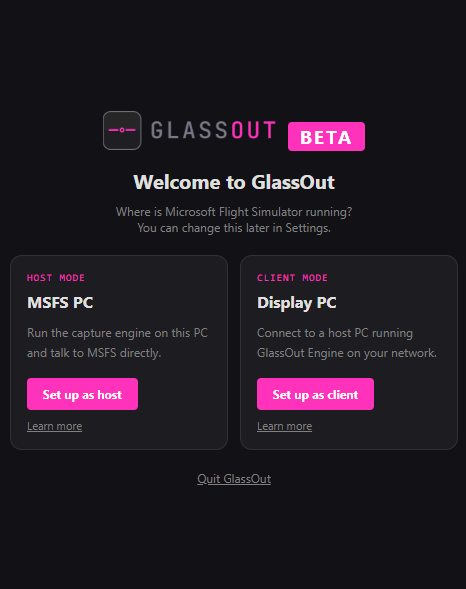
GlassOut can run two different ways. Both are first-class — the choice is just about where the desktop app lives relative to MSFS.
- Host mode — GlassOut runs on the same PC as MSFS. Most users pick this. It's the default.
- Client mode — GlassOut runs on a different PC on your LAN and connects to a GlassOut engine running on the MSFS PC. Useful when you want a dedicated display PC for panels
The first time you launch GlassOut, you'll see a chooser. You can switch later from Settings → Connection without losing your profiles.
Which one do I want?
| You want… | Pick |
|---|---|
| The simplest setup — one PC, MSFS and GlassOut side by side | Host |
| Panels mirrored to other devices (phone, tablet, browser) on the same Wi-Fi | Host |
| A dedicated home-cockpit display PC driving physical screens, with MSFS on a different rig | Client |
| Your gaming PC fully dedicated to MSFS, with GlassOut's UI on a laptop next to you | Client |
| A streamer's two-PC setup, with capture / overlays on the second box | Client |
In both modes you can still hand panel URLs to phones, tablets, and browsers — that part works the same.
Host mode
You install GlassOut on the MSFS PC and pick "Run on this PC" on first launch. From that point on:
- The desktop app spawns
glassout-engine.exeon startup (elevated — the engine needs Administrator access to read panels from MSFS). - Everything talks over
127.0.0.1, so latency is effectively zero. - The engine's LAN endpoint (
http://<your-ip>:8787/panel/...) is still reachable, so your phone, tablet, and any browser on the same Wi-Fi network can view panels as usual.
That's it. No further setup. The rest of the documentation assumes host mode unless it says otherwise.
Client mode
You install GlassOut on both PCs:
- MSFS PC — install and open GlassOut. Pick host mode on first launch. This PC now runs the engine. You can close the desktop app afterwards; the engine will keep running as long as it has clients. For a fully unattended setup, enable autostart so the engine launches with Windows.
- Display PC — install and open GlassOut. Pick "Run on a different PC". GlassOut will scan the LAN for engines.
The engine picker
The picker lists every GlassOut engine it finds on your LAN. Each entry shows the engine's hostname, IP, port, and version. Click Connect to use one.
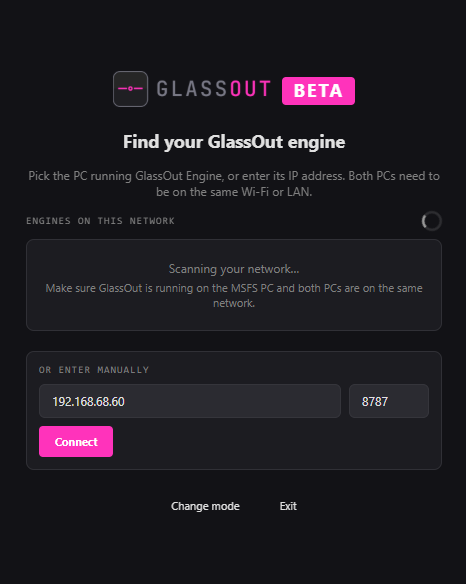
If your network blocks multicast (corporate Wi-Fi, captive portals, some
mesh routers) the list stays empty. Use Enter manually to type the
MSFS PC's local IP and port 8787. You can find the host PC's IP in its
Settings → Network panel.
The picker remembers the engine you picked. On the next launch, GlassOut silently reconnects to the saved address — you'll only see the picker again if that engine has moved or gone away.
"Reconnecting…"
When you launch GlassOut in client mode and the saved engine isn't answering immediately, you'll see a brief Reconnecting… overlay. GlassOut is trying two things at once: pinging the saved IP, and listening on mDNS in case the host PC's IP has changed (DHCP renew, new router, etc.). After a few seconds, if nothing comes back, the picker appears so you can choose again.
Switching engines later
Settings → Connection → Pick a different engine clears the saved address and re-opens the picker without changing mode.
Settings → Connection → Change mode drops you back at the first-launch welcome chooser so you can flip between host and client. Profiles, licenses, and other settings stick around — only the connection target changes.

Engine version mismatch
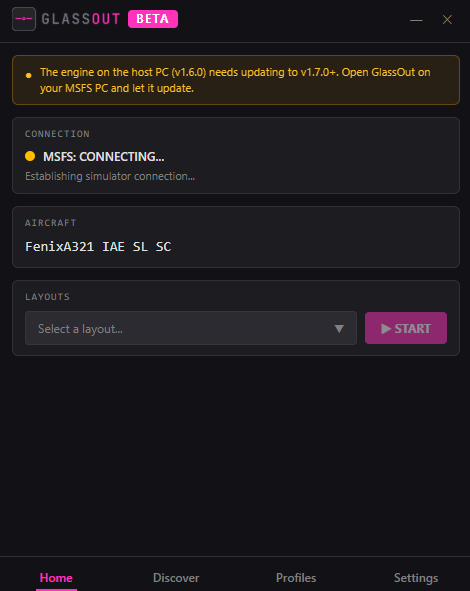
In client mode the display PC and the MSFS PC each have their own copy of GlassOut, so they can drift in version. If the display PC's app is newer than the MSFS PC's engine, you'll see an amber banner on the Home tab telling you to update the host. Open GlassOut on the MSFS PC and let it update — once the engine restarts, the banner disappears on its own.
In host mode the bundled engine is always in lockstep with the app, so
you'll only see this banner if someone manually replaced
glassout-engine.exe.
License sharing
If you have a license activated on any GlassOut connected to the engine, every connected client treats that as active — the DEMO watermark disappears on all of them. You activate once on the PC you keep the key on; the rest borrow it for as long as they're on the same engine. See Licensing → Shared licenses for details and edge cases.
Troubleshooting
If the picker can't find your engine, jump to Troubleshooting → "Can't find the engine on the network".