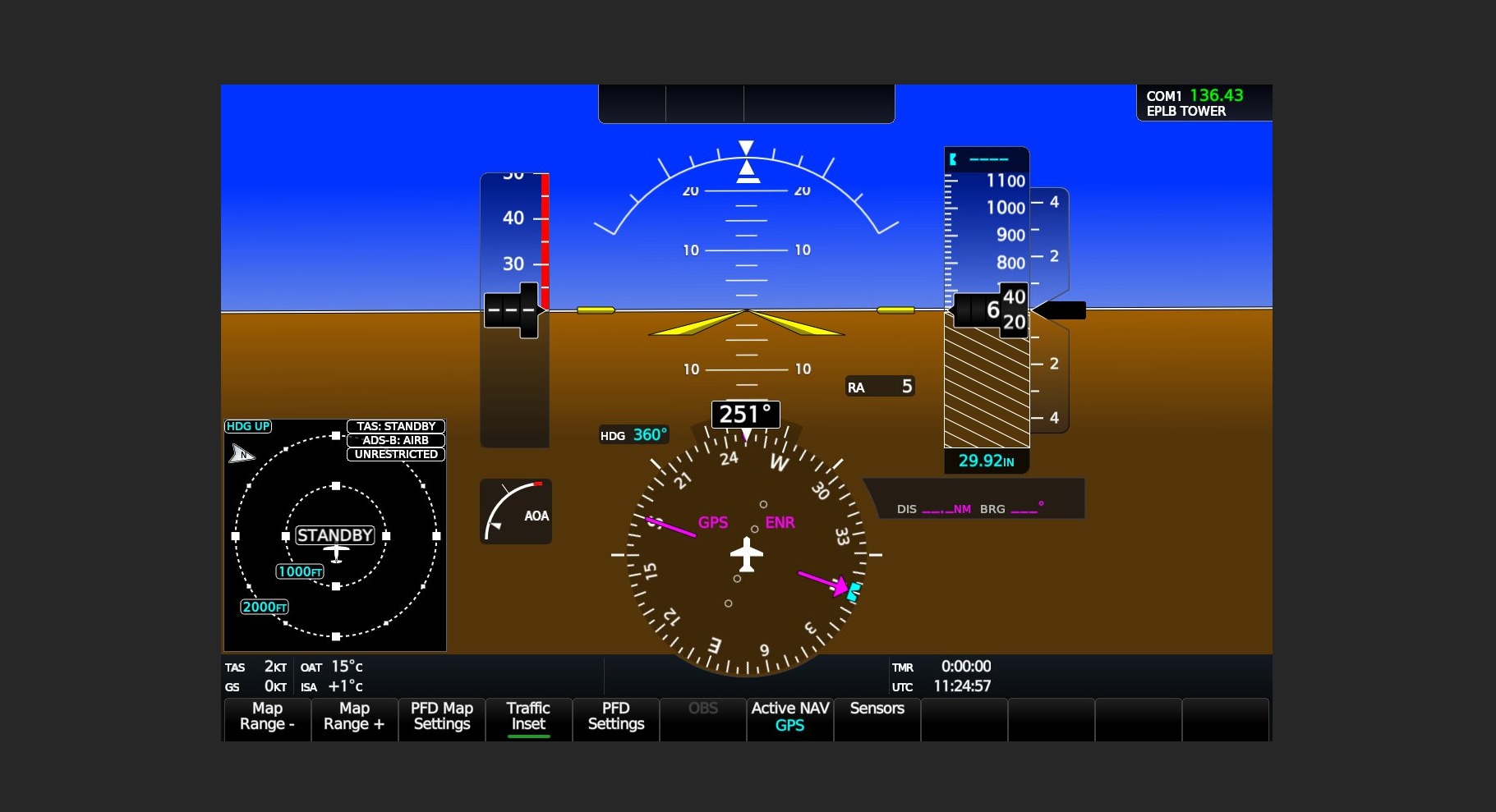
The main window
The GlassOut desktop app is a compact 480×600 window designed to dock on a second monitor and stay out of your way. It's frameless — grab the top bar to drag it.
Title bar
| Element | What it does |
|---|---|
| GlassOut logo | Cosmetic, and also the drag handle for the whole window. |
| Account badge | Shows "Activate" (red glow) when no license is active, or the product name when licensed. Tap it to jump to Settings. |
| Minimize / close | Standard window controls. Closing the app does not kill the engine immediately — it stops a few seconds after the last process client disconnects. |
The four tabs
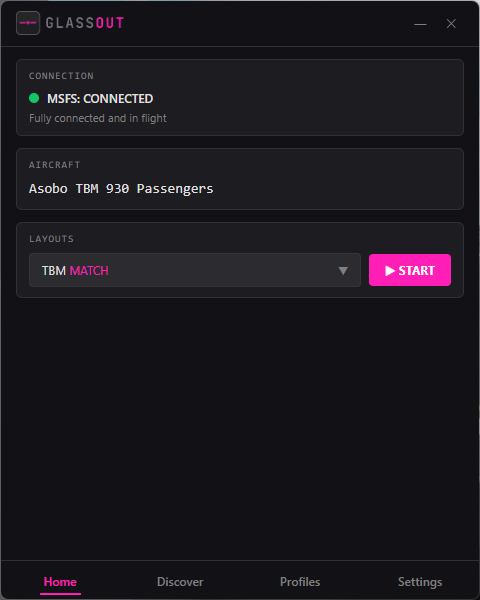
🏠 Home
- Connection status — a single indicator covering whether MSFS is running, whether GlassOut is talking to it, and whether you're in flight. The labels are intentionally honest: Waiting for MSFS, Waiting for flight, Connecting..., Connected — in flight, MSFS connection failed.
- Aircraft display — the current aircraft title from the sim.
- Profile selector — only shows profiles whose aircraft regex matches the current aircraft and that have a saved layout. Pick one and hit Start.
- Start / Close All / Update Layout — deploys the saved layout across your monitors, closes all open viewer windows, or re-saves the positions after you drag them around.
- DirectX warning — appears if MSFS is running in DirectX 11. GlassOut requires DirectX 12; the card tells you how to switch.
🔭 Discover
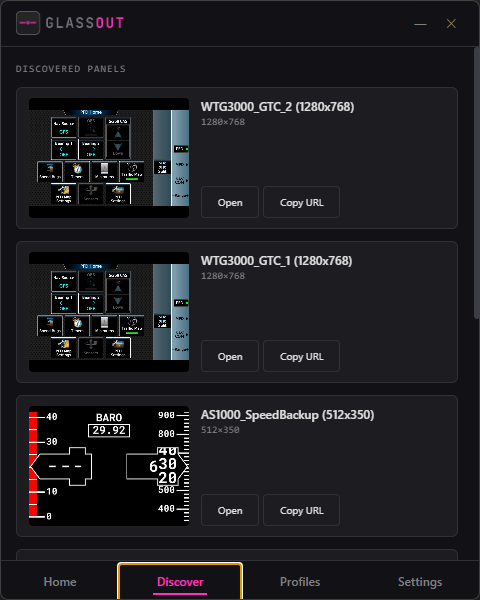
Every panel the engine has identified in MSFS. Each card shows the panel's name, dimensions and a small live preview.
- Open — pops out a borderless viewer window.
- Copy URL — copies the
http://<lan-ip>:8787/panel/<id>URL. Paste it into any browser on your network, or into an OBS browser source, or an iframe.
📁 Profiles
The list of all profiles you've created. Newest first. Click any card to open the editor in its own window. Click + New to create a blank one.
⚙️ Settings
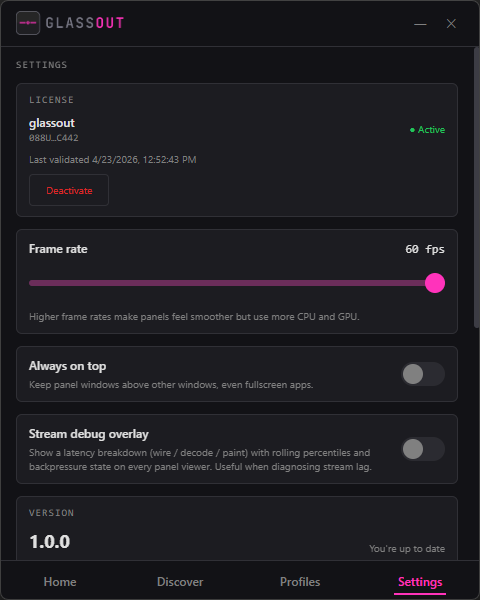
- License — activate / deactivate, paste from clipboard, see the masked key and last validation time.
- Frame rate — a 10–60 slider that sets how many frames per second the engine sends to this PC's viewers. Default is 60 fps. Lower it if you see stutters or want to save CPU/bandwidth; the engine caps the capture loop at the highest rate any connected client asks for, so trimming this down on a headless home-cockpit PC saves real work.
- Always on top — keep viewer windows above MSFS even if you alt-tab into the sim.
- Stream debug overlay — shows a latency breakdown (wire / decode / paint with rolling percentiles) and backpressure state on every panel viewer. Leave off in normal use — see Stream diagnostics for the breakdown and when to turn it on.
- Version — current version, check-for-updates button, download progress if an update is rolling.
- Network — the auto-selected LAN IP (used for "Copy URL") plus any alternate candidates if you need to override it manually.
- Diagnostics — upload PC + engine logs to support.
Popped-out windows
GlassOut spawns separate windows for three different purposes:
| Window | When it opens | Notes |
|---|---|---|
| Editor (profile / fragment / template) | When you click a profile card, "Edit", or "Create fragment". | Resizable; deduplicated per document so you can't open the same profile twice. |
| Viewer (panel / fragment / template) | When you click "Open" anywhere. | Frameless, transparent, drag-to-move via a thin hover bar at the top. |
| Update gate | When a mandatory update arrives. | Replaces the main window entirely until the download completes. |