Profiles
A profile is GlassOut's reusable unit of work. It bundles everything that belongs to one aircraft:
- A name and an optional aircraft pattern (regex) that lets GlassOut auto-match the profile to the current aircraft.
- Fragments — cropped regions of source panels.
- Templates — custom canvases composed from panels and fragments.
- Placements — saved window positions for every panel/fragment/template you want to deploy with "Start".
- A Touch Panel Click Delay setting (ms) for aircraft whose touch instruments need a hover before they register a tap.
Profiles are managed entirely inside the app — create them, tweak them, and they stay available across sessions.
Creating a profile
- Profiles tab → + New. A new profile is saved immediately with a generated ID.
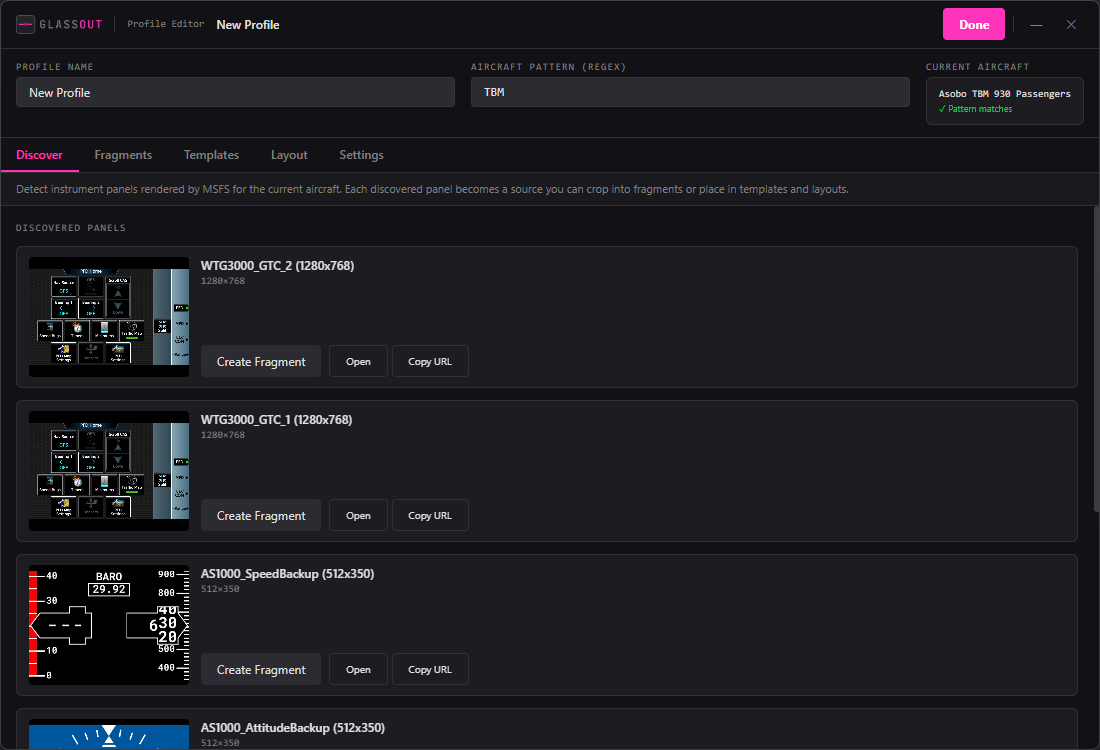
- The editor window opens. Fill in:
- Name — your label (e.g. Fenix A320).
- Aircraft pattern — a regex tested against MSFS's aircraft title. The helper below shows ✓ / ✗ live as you type.
- Changes auto-save after a 500 ms debounce — there is no "Save" button.
Aircraft pattern tips
- Leave it blank if you want the profile to match every aircraft.
- Use anchors when needed:
^Fenix A320avoids matching a "Fenix A320 Ultimate A321" if you ever get one. - Regex is case-sensitive.
- For the default MSFS airliners try fragments like
.*Airbus H135.*,^Boeing 787.*, or.*G3000.*.
The editor tabs
The profile editor is organised as sub-tabs across the top:
| Tab | Purpose |
|---|---|
| Discover | Browse every panel MSFS is exposing right now. Create fragments from them. |
| Fragments | All fragments in this profile, grouped by source panel. Edit, open, copy URL, delete. |
| Templates | Canvas editor to compose fragments and full panels onto a fixed-size backdrop. |
| Layout | Mini-map of your displays with current window placements. Save / open / close. |
| Settings | Profile-scoped options (touch click delay). |
Each tab is covered in its own page — see Fragments, Templates, and Run & Layouts.
Auto-matching
The Home tab's profile dropdown filters to profiles whose regex matches the current aircraft. A green MATCH badge indicates the active aircraft fits the pattern. Saved layouts required too — a profile with no placements won't show up in the Start selector (there'd be nothing to deploy).
Deleting
The "Delete" button on a profile card asks for confirmation with the profile name. Deletions are permanent.