Run & multi-display layouts
The Run feature is the payoff for setting up profiles — one click deploys every panel, fragment and template you care about to the exact monitors and pixel coordinates you saved. Perfect for home-cockpits and multi-monitor setups.
The workflow
- Open the panels, fragments and templates you want.
- Arrange the viewer windows — drag them to the right monitors, resize them as you want.
- Save Layout in the profile editor → Layout tab (or directly from the Home tab).
- Next flight: pick the profile on the Home tab, hit Start, and every window reopens in place.
The Layout tab
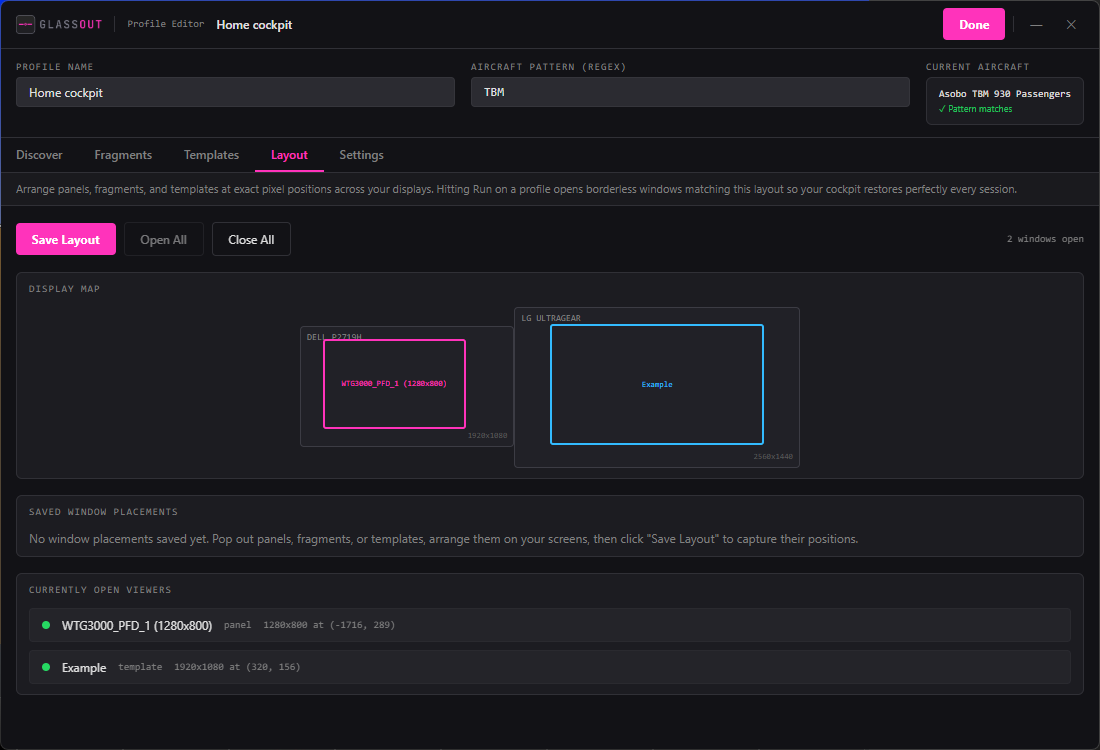
The Layout sub-tab in the profile editor shows:
- A mini-map of all your monitors at their real relative positions, with every placement drawn as a small rectangle labelled with the source panel/fragment/template.
- A list of all placements with their pixel coordinates and size.
- Buttons: Save Layout, Open All, Close All, Remove (per placement).
Running from the Home tab
Pick a profile from the dropdown on the Home tab. The dropdown only shows profiles that:
- Have a saved layout (otherwise there's nothing to run), and
- Have an aircraft regex that matches the current aircraft title.
Hit Start and GlassOut opens each placement as a borderless viewer window at its saved (x, y, width, height).
While running
- Close All — close every viewer at once without touching the profile.
- Update Layout — re-save the placements after you drag windows around.
GlassOut watches your viewer windows in the background. If you close one, or drag it to a different monitor, an "Update Layout" hint appears so you can persist the new state with one click.
Screen mismatch
GlassOut saves each display's identity (bounds) alongside the placements. If you later unplug or rearrange monitors, the saved coordinates might fall off-screen. When that happens:
- A Screen Mismatch warning appears on the Home and Layout tabs.
- You get two options:
- Open on main screen — opens everything on the primary display so you can drag them back into place.
- Save new layout — re-captures the current screen config with the existing placements.
Always on top
In Settings, toggle Always on top for viewers if you want panel windows to stay visible even when MSFS is focused. Useful if you alt-tab a lot; otherwise you can leave it off and just click between windows normally.
Frameless viewer chrome
Viewer windows have no OS chrome. A thin hover-to-reveal bar at the top shows:
- The panel/fragment/template name.
- A close button.
- The drag area (click and drag to move the window).