Licensing & demo mode
GlassOut is a paid product with a generous, fully-functional demo mode.
Demo mode
Unlicensed copies behave exactly like licensed copies, with one difference: every panel frame carries a repeating DEMO watermark.
The watermark is applied server-side, inside the engine, before compression. That means it travels with the stream — browsers on your phone, tablet, home-cockpit PC, or any third-party app all see it.
The watermark is small and mostly non-intrusive, so you can fully evaluate GlassOut in a real flight before buying.
Activating a license
- Go to Settings → License in the desktop app.
- Paste your license key into the input field (or tap Paste to grab it from the clipboard).
- Click Activate.
Within a second or so the watermark disappears on every connected viewer, and the License card shows your product name and last-validated time.
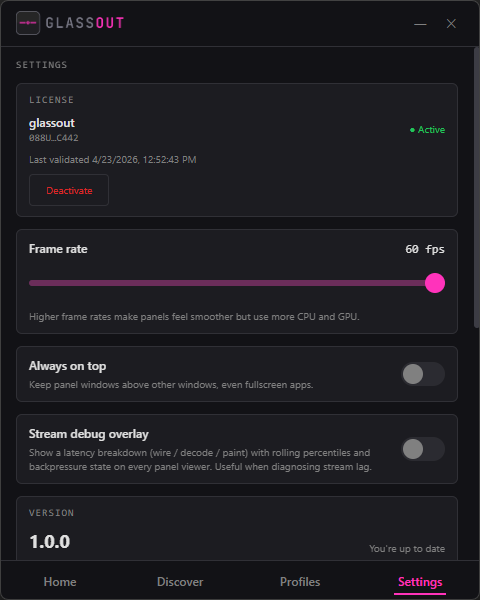
What "activation" actually does
- Sends your key to the GlassOut license server.
- The server confirms your key and ties this machine to your account.
- GlassOut stores your credentials encrypted at rest so future launches just work.
- The DEMO watermark disappears on every connected viewer.
Your raw key never touches logs or telemetry in plain text. Diagnostic log uploads only include a masked form (first four + last four characters).
Device limits
Your license permits a limited number of active devices. If you hit the limit, activation returns an error and GlassOut asks you to deactivate one of your existing devices first — either from that machine, or by contacting support.
Deactivating
- Settings → License → Deactivate releases the device on the server and wipes local storage.
- Deactivation succeeds locally even if the server is unreachable. This means you can always release a license from the current machine — you'll never get locked out if your Internet is down.
Moving to another machine
- On the old machine: Settings → License → Deactivate.
- On the new machine: Settings → License → paste key → Activate.
That's it.