Fragments
MSFS frequently renders several gauges into a single large atlas texture — a PFD, ND and upper EICAS might all share one 2048×2048 panel. Fragments let you pull individual instruments out of that atlas.
A fragment is simply a named rectangle in a source panel's pixel space. Everything else — scaling, stream subscriptions, URL generation — is handled for you.
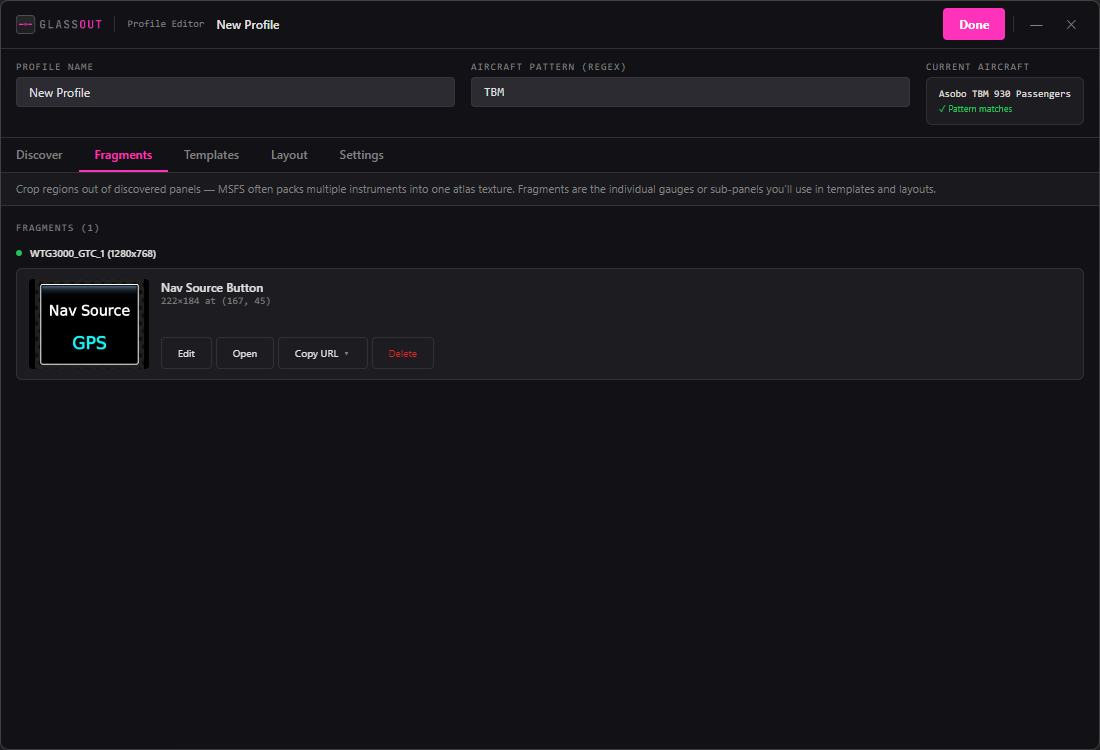
Creating a fragment
- Open a profile and go to the Discover sub-tab.
- Click Create Fragment on the panel card of interest. A new window opens.
- You'll see the live panel on the left and a "New fragment" form on the right.
- Click-drag on the panel to draw a rectangle.
- Type a name and click Save.
The fragment appears in the list on the right immediately. The crop rectangle is stored in the source panel's native pixel coordinates — it stays correct regardless of your display resolution.
Adjusting a fragment
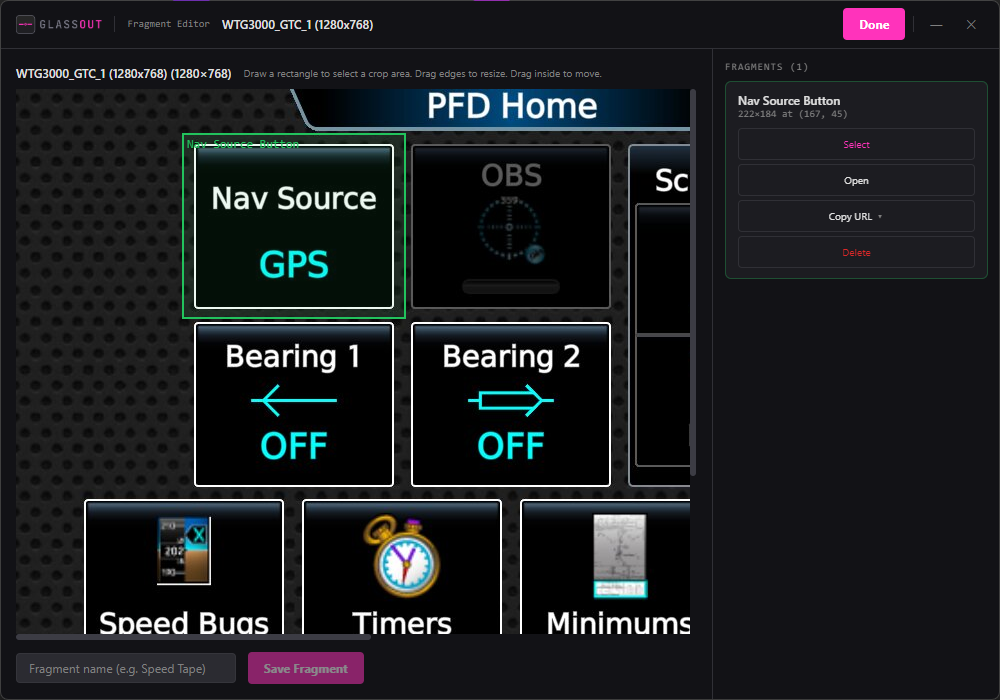
- Click inside the rectangle and drag to move it.
- Drag an edge or corner to resize. There are eight resize handles (N, S, E, W, NE, NW, SE, SW); the cursor feedback tells you which is which.
- The dimension label updates live (e.g.
640×480 at (100, 200)).
Fragment actions
From the fragments list (both in the fragment editor and in the profile editor's Fragments tab):
| Action | What it does |
|---|---|
| Select | Highlight the rectangle on the main canvas. |
| Edit | Opens the fragment editor with that fragment loaded. |
| Open | Spawns a viewer window showing just that fragment. |
| Copy Configuration URL | A http://<ip>:8787/canvas?... URL with the crop baked in. Shareable. |
| Copy Instance URL | A /instance/<profile>/<fragment> URL that live-updates when you edit the fragment later. |
| Delete | Confirms, then removes. |
Green vs grey dots
In the profile editor's Fragments tab, fragments are grouped by their source panel. A green dot next to a group means the panel is currently live in MSFS. A grey dot means the panel isn't available right now — you can still edit its fragments, but you won't see a live preview.
Tips
- Draw bigger than you need, then shrink — it's easier than starting at a pixel and dragging outward.
- Touch panels: if you're cropping a touch EFB / GTC, bump up the Touch Panel Click Delay in Profile → Settings. Some panels only register taps when the synthetic mouse hovers for a few hundred milliseconds first.
- Atlases change: if MSFS updates an aircraft and the atlas layout shifts, your crops may need re-aligning. Reopen the fragment editor and nudge.