Mobile app
The GlassOut mobile app is a focused viewer: no editing, no profile creation. It discovers your PC over Wi-Fi and streams the panels you pick, full-screen.
Available on the App Store (iPhone, iPad) and the Play Store (Android phones and tablets). The mobile app is a pure client — you need the GlassOut PC app running on the computer with MSFS. There's a link to download it at the bottom of the Discovery screen if you haven't installed it yet.
Panel streaming is bandwidth-sensitive. For the best experience use a 5 GHz Wi-Fi network (not 2.4 GHz), keep the device within good signal range of the router, and avoid congested channels. A single panel on a healthy link is only 3–7 Mbps, but packet loss and retransmits on weak 2.4 GHz will cause the engine to back off quality automatically. If the picture looks soft, the link is the first thing to check.
Connecting
Automatic
- Put your phone and PC on the same Wi-Fi network.
- Launch the app. The Discovery screen scans for GlassOut engines.
- Tap the
GlassOut Engineentry. The app remembers it for next time.
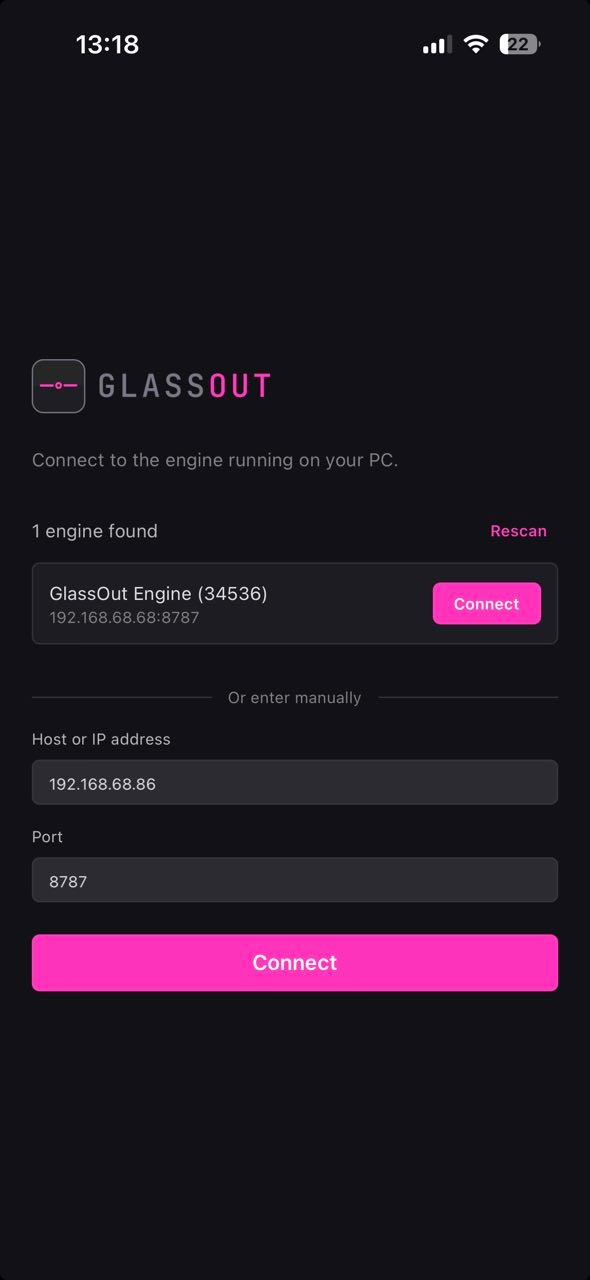
iOS only: the first time you scan, iOS pops the Local Network permission prompt. Grant it — without it, automatic discovery is silently blocked by the OS.
Manual fallback
If auto-discovery doesn't work (hotel Wi-Fi, guest VLANs, corporate
networks, or a VPN interfering with mDNS), tap Enter manually and type
the PC's LAN IP and port 8787.
You can find the LAN IP on the PC under Settings → Network in the desktop app. GlassOut picks the best adapter automatically; alternative IPs are listed below if you need to override.
Discover tab
Once connected, the Discover tab shows every panel MSFS is exposing, exactly like the desktop Discover tab. Tap any one of them to open it full-screen.
Profiles tab
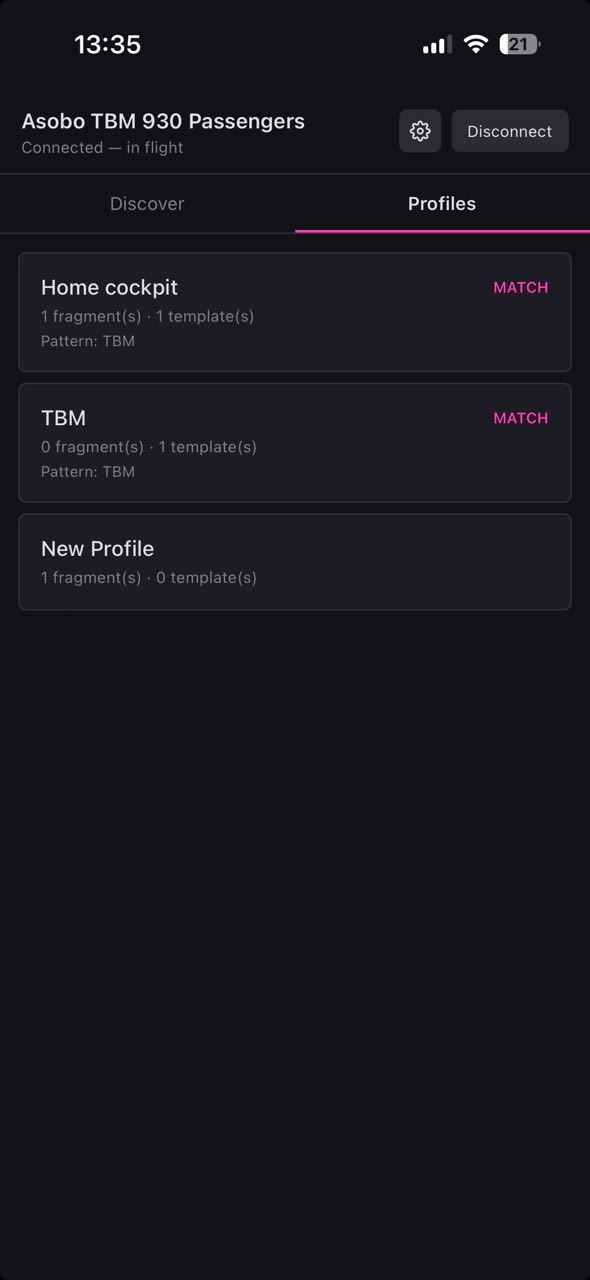
The PC app pushes every profile to the engine, and the engine forwards them to every connected client. Your phone sees the same fragments and templates you set up on the desktop — tap a profile, then pick a panel, fragment, or template to display.
Each profile card shows:
- Its name.
- The aircraft pattern + a green MATCH badge if it applies to your current aircraft.
- Fragment / template counts.
Viewer
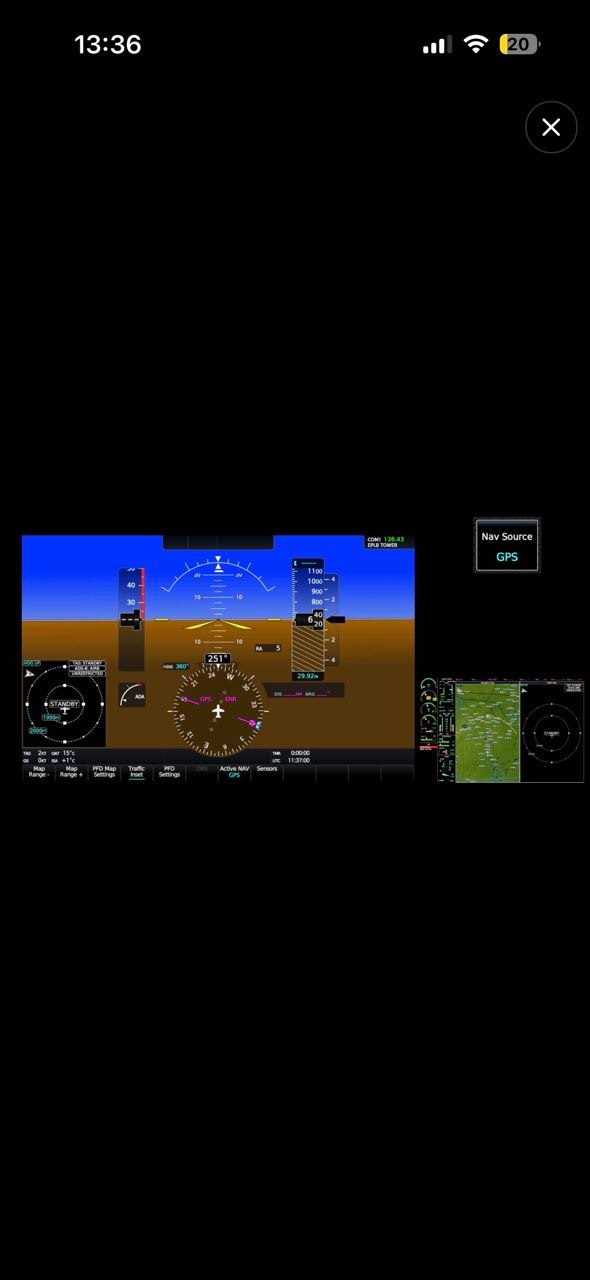
Tapping any item opens a full-screen, locked viewer:
- Pinch-zoom and scroll are disabled.
- The device screen stays on while the viewer is open.
- Tap the small × in the corner to go back.
- If the PC disconnects or MSFS closes, a banner appears over the panel — you don't have to reload.
Touch interactivity
Every tap on a panel is forwarded to MSFS as a click. Touch panels — including the GTN 750, WT G3000 GTC — respond just like they do on your PC.
If an aircraft's touch panel is flaky, bump up the Touch Panel Click Delay in the profile's Settings tab on the PC. The delay lets the click hover long enough for the instrument to register the tap.
Settings
Tap the gear icon in the top-right of the Connected screen (next to Disconnect) to open the settings sheet. The sheet hosts per-device viewer preferences — they apply to every panel you open from this phone and persist across app restarts.
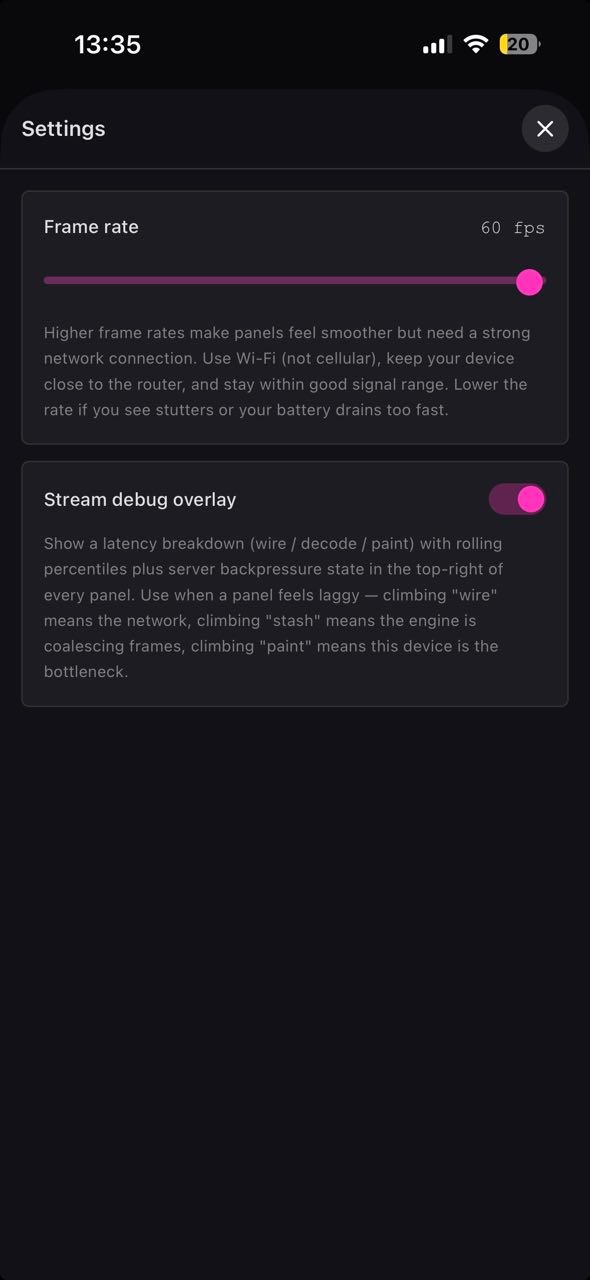
Frame rate
A 10–60 fps slider that caps the stream rate the engine sends to this device. Default on mobile is 30 fps (a sweet spot for typical instrument panels — the picture looks fluid without the battery and network cost of 60). The engine ticks the capture loop at the highest rate any connected client asks for, so lowering this on a phone doesn't affect a PC on the same engine.
Lower the rate if:
- The battery drains faster than you'd like in long flights.
- The link is weak and the picture stutters — 20 fps on a stable link looks much better than 30 fps on a thrashing one.
Stream debug overlay
A diagnostic overlay that draws frame-latency and backpressure readings in the top-right of every panel. Turn it on only when a panel feels laggy and you want to see why. See Stream diagnostics for a full breakdown of the numbers and what they mean.
Performance: When the overlay is off, the engine doesn't compute or send the per-tick diagnostic messages, and the viewer doesn't run the per-frame timing instrumentation — the cost is zero. Leave it off in normal use.
Notes
- The mobile app is a viewer — it doesn't keep GlassOut running on the PC. Closing the desktop app will end the session even if phones are still watching.
- Picture quality adapts automatically to each device's link. The engine encodes JPEGs on the fly and steps quality down for any client that can't keep up, then back up when the link recovers — no manual tuning required.
- Low-power mode on iPhone / Android can hurt streaming. The OS throttles WiFi radios to save battery, which can cut sustained throughput by 50–80%. The engine will adapt by dropping quality, but if the picture is noticeably soft, turn low-power mode off and the stream should snap back to full sharpness within a few seconds.
- Typical bandwidth per panel on a healthy 5 GHz link: 3–7 Mbps (one panel, 30 FPS). Plenty of headroom on home Wi-Fi.